TikTok to MP3: How to Save the Sound of Any TikTok Video
By the CutThisX team··2 min read
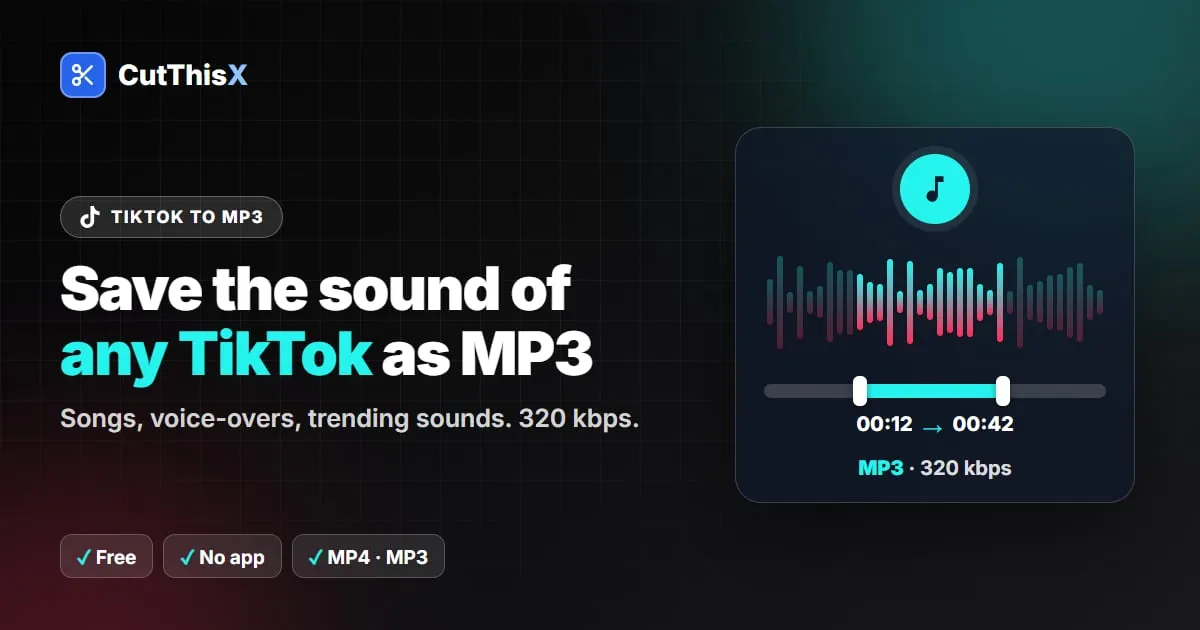
TikTok lets you add a sound to your favourites, but only inside the app. To use it anywhere else (as a ringtone, in a video edit, or just to listen offline), you need an audio file. Here is how to turn any public TikTok into an MP3.
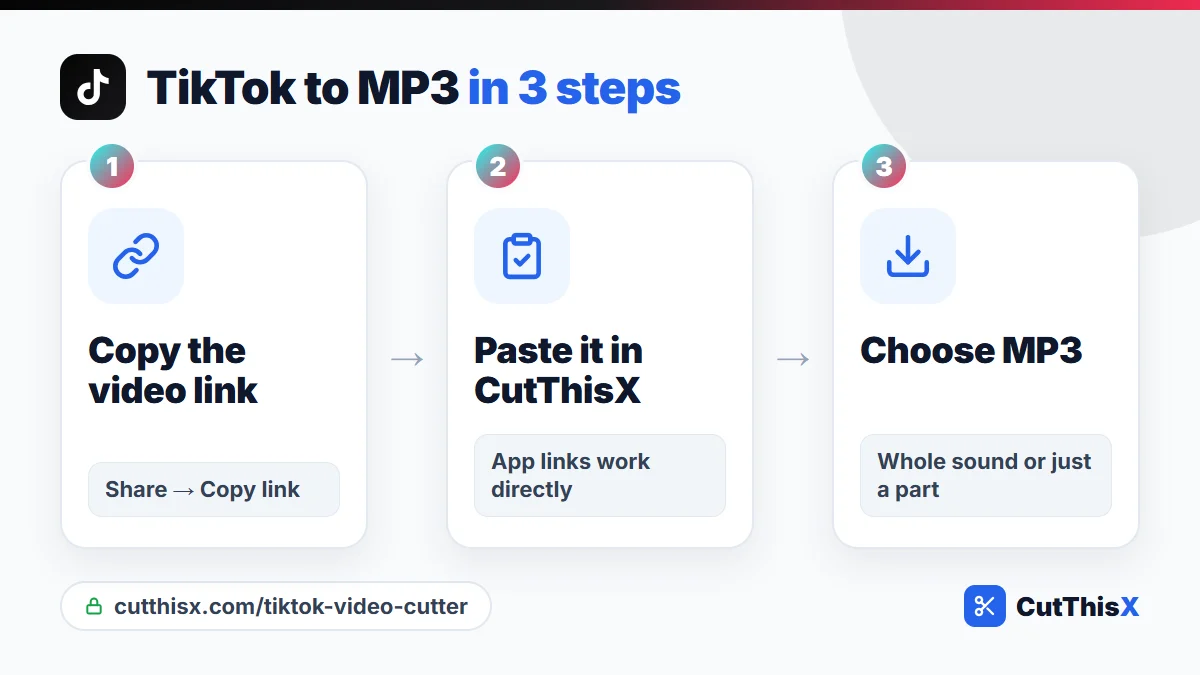
TikTok to MP3 in 3 steps
- In TikTok, tap Share → Copy link on the video that uses the sound.
- Paste the link in the TikTok video cutter and press Fetch & Trim.
- Choose MP3 and download the whole sound, or set a start and an end first.
Links copied from the app (vm.tiktok.com/…) work directly.
Keep only the part you want
The chorus, the punchline, the beat drop: set a start and an end and the MP3 contains only those seconds, cut exactly. It is the easiest way to make a ringtone or a notification sound; see how to make a ringtone for the phone settings.
About the quality
The MP3 is saved at 320 kbps, the highest MP3 quality, so none of the detail in TikTok's original audio is lost. (No converter can make it better than the original.)
Paste a video, not a sound page
Paste the link of a video that uses the sound. Sound pages (tiktok.com/music/…) are lists of videos, not videos themselves.
What you can do with the MP3
- Set it as a ringtone or alarm.
- Use it in your own edit (CapCut, InShot, Premiere…).
- Listen offline, or send it as a voice note.
Want the video too?
Choose MP4 instead. CutThisX picks the H.264 version of TikTok videos, which plays on every phone and in every editor. If a downloaded TikTok ever showed you a black screen, this is why.
If it doesn't work
- Private accounts: their videos can't be downloaded.
- Photo posts (slideshows) are not supported.
Music on TikTok is usually protected by copyright: keeping a sound for your own use is one thing, publishing it is another.
Ready to try it?
Open the tool