How to Clip a YouTube Live Stream While It Is Still Live
By the CutThisX team··2 min read
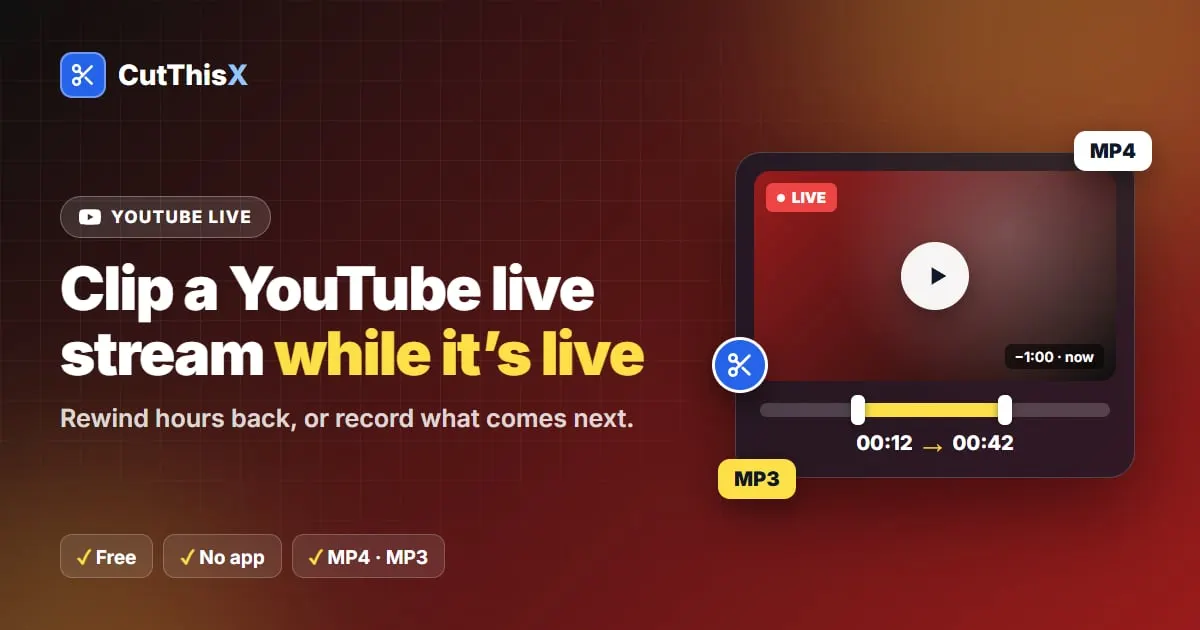
Something great just happened on a live stream and you want to keep it. You don't have to wait for the stream to end, or record your screen. Here is how to clip a YouTube live while it is still running.
Step by step
- Copy the link of the live. A channel's live page works too, for example youtube.com/@channel/live.
- Paste it in the live stream clipper (or the YouTube video cutter, which handles lives as well).
- The live player opens at the current moment, and the timeline shows how far back you can go.
- Pick your clip:
- Last 30s, Last 1m, Last 5m save what just aired;
- Next 30s, Next 1m, Next 5m record what comes next. The download finishes once that moment has streamed;
- or rewind in the player and press Set Start Here and Set End Here for an exact moment.
- Download as MP4 or MP3.
How far back can you rewind?
YouTube keeps a rewind window for most live streams, often several hours. As long as the moment you want is inside that window, you can clip it. The cutter shows the window above the timeline, so you know exactly what is available.
Why not just record the screen?
- The clip has the original picture and sound, without notifications, cursor or screen borders.
- It is the exact seconds you selected, named with the real date and time they aired.
- It works the same on a phone and on a computer.
After the live ends
When the broadcast is over, YouTube turns it into a normal video. Paste the same link again and cut any part of the replay, or download only part of the video as usual.
Other platforms
The same tool clips live broadcasts on X (Twitter) and Facebook, plus any HLS link ending in .m3u8. Facebook keeps almost no rewind, so read how to save a Facebook live for the details.
Please only clip streams you own or have permission to use.
Ready to try it?
Open the tool